

























COMPANY OVERVIEW
About Us

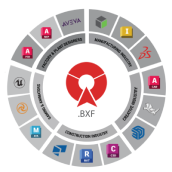
BIMDeX connects CAD, design, and BIM software, enabling seamless data exchange with its BXF toolkit and ML, ensuring no loss of geometry or metadata.

OTHER USEFUL LINKS
GLOBAL PRESENCE

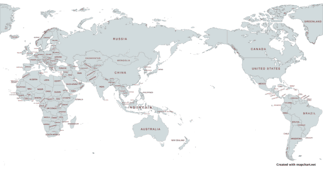
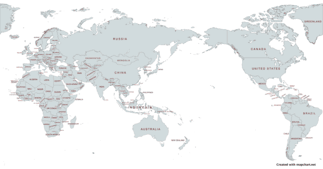
BIMDex is proud to partner with a global network of trusted resellers who help bring our innovative BIM solutions to businesses worldwide.

AMERICAS
ASIA
EUROPE
MIDDLE EAST
OCEANIA
DATA-DRIVEN ENGINEERING DIGITALIZATION
BIM Automation Tools

BIMDeX connects CAD, design, and BIM software, enabling seamless data exchange with its BXF toolkit and ML, ensuring no loss of geometry or metadata.

BIMDeX Ecosystem
BIMDeX Ecosystem
BIMDeX Ecosystem

BIMDeX connects CAD, design, and BIM software, enabling seamless data exchange with its BXF toolkit and ML, ensuring no loss of geometry or metadata.

BIMDeX solutions

Experience the power of BIMDeX solutions.

Request a free demo now and see how it can benefit your business.

BOOK A FREE CALL
Book a Free Call
Webinar
Autodesk DevCon 2026

Meet BIMDeX at Autodesk DevCon 2026 in Amsterdam. Join our sessions, see live demos of CAD-to-Revit conversion across SolidWorks, Creo, and Inventor, and talk to our team about eliminating translation loss from your BIM workflow.

Know More
LEARN
BLOG
POSTED ON:
Mar 31, 2026

When it comes to converting 

BLOG
POSTED ON:
Mar 16, 2026

Recent trends in the construction and architectural sectors have paved the way for new ideas and innovations that improve project quality and enhance team coordination. O

BLOG
POSTED ON:
Feb 18, 2026

What is essential for an industry, especially an industry like AEC? While we say there are various important aspects that sustain the industry, one prominent factor is a col

BLOG
POSTED ON:
Feb 04, 2026

How would you test a car? On a test track, or on real roads?  Many BIM managers make

BIMDeX & DATA EXCHANGE (DX) INTEGRATION

CAD, DESIGN & BIM INDUSTRIES

SoftwareLogos
CUSTOM WORK GROUP MANAGER
COMPUTER-AIDED DESIGN (CAD)
ARCHITECTURE, ENGINEERING & CONSTRUCTION
Need help getting started?

Our team is ready to help

BOOK A FREE CALL
Stay Updated with BIMDeX

Discover the latest updates, industry news, and insights from the world of CAD, BIM, and design technology.

PRESS RELEASE
PRESS RELEASE
POSTED ON:
OCT 14, 2024

Autodesk Partners with SrinSoft Inc. to Revolutionize Interoperability

Autodesk Partners with SrinSoft Inc. to Revolutionize Interoperability

Autodesk is excited to announce a partnership with APS certified partner SrinSoft Inc. This collaboration aims to address the interoperability challenges faced by the architecture, engine...

IN THE MEDIA
IN THE MEDIA
NEW RELEASE

Convergence of Engineering Design & Data

NEW RELEASE

Digital transformation begins with convergence, connecting your organization using data while bridging

ANNOUNCEMENT

Enterprise Connected Data Through Interoperability

ANNOUNCEMENT

Enterprise Interoperability is the ability of an enterprise - a company or other large organization—to functionally link activities,

PRODUCT SPOTLIGHT

BXF - Collaborate from a Single Source of Data

PRODUCT SPOTLIGHT

As part of our long-standing commitment to cross-platform interoperability, we continue to ensure that our portfolio of products meets the rigorous requirements of design


How to categorize the SolidWorks components inside Revit Using BIMDeX

Published:
Add Us On Google
i
Google Preferred Sources lets you personalize your search results. By choosing a source like Bimdex, you're telling Google's AI to prioritize their content, giving you more of the information you trust.

Exporting the models from the CAD interface to the BIM environment enhances multiple fortunes for the design and construction industries to collaborate on designs and elevate projects. When taking the model from the CAD to Revit, there are various needs for a customized export.  

In the case of exporting the model from SolidWorks to Revit, one can categorize the SolidWorks components inside Revit with ease and avoid misconceptions while having the model in the Revit environment.  

The BIMDeX SolidWorks to Revit exporter make it easy with the options for you to categorize the SolidWorks components based on rules and smoothly convert them to Revit.  

How to Categorize the SolidWorks Component?

With BIMDeX, categorizing the SolidWorks components is simple and user-friendly. Look at the steps that BIMDeX offers and streamline categorization.  

The BIMDeX SolidWorks to Revit exporter plugin can be installed in SolidWorks upon loading the model and can be initiated for export by clicking the ‘Export’ option.
 

Step 1:

With BIMDeX, you will have the customize options to enhance customized exports, from which you can select the ‘Category Mapping’ option.
 

Step 2:

Once you have chosen the category mapping, you will be directed to the ‘Rule Editor’ pop-up.


Step 3:

Here, you can assign the pre-defined rules for category mapping based on file or property name, property value, and category.


Step 4:

Selecting the property name is the first important step where BIMDeX will list all the available properties of SolidWorks parts and assemblies. If you want to choose other properties, you can opt for the ‘Include properties’ options, and BIMDeX will list the rest of the properties, and you can choose the exact ones. 
 

Step 5:

The immediate step after selecting the property name is to choose the property value. Based on the selected property name, BIMDeX will showcase the property value in the drop-down.
 

Step 6:

Now, as a final step before exporting, BIMDeX will list out all the prominent categories in which the user can select the exact category, and once selected, BIMDeX will automatically map all the components based on name and value to the exact categories.


Step 7:

As BIMDeX will critically automate the categorization process, the categorized SolidWorks model can now be exported to Revit as a BXF file and imported in Revit to have a significant view.
 

How Does the Model Get Categorized in Revit From SolidWorks?

The SolidWorks components that are categorized and transferred as a BXF file can be stimulated for further categorization in Revit with BIMDeX.  

The exported file from SolidWorks can be imported with BIMDeX and offers the steps below to effectively categorize components.
 

Step 1:

With BIMDeX, the user can import the SolidWorks model in Revit and obtain the categorized model without misconceptions. With the ‘File selection’ option, the user can choose the saved BXF and enhance it for import.


Step 2:

To acquire further categorization options, BIMDeX has the ‘Advanced Settings’ option for users to reach the next part of categorization.
 

Step 3:

Under the Advanced Settings, you can find the ‘Custom’ option, which will direct you to the space where the exported BXF file with the list of categorized SolidWorks components will be displayed.
 

Step 4:

After selecting the ‘Custom option’, the user can check the categorized component list, and if required, the user can change the pre-assigned categories in Revit with much ease.
 

To Conclude

Customized model export from SolidWorks to Revit emphasizes the aspect of model conversion, and with BIMDeX, it is assured. Effective categorization through BIMDeX reduces post-conversion issues and solves misconceptions about identifying the SolidWorks components in Revit.  

BIMDeX does not offer categorization alone; it has a series of features for model conversion from one software to another in a much more effective way compared to primitivity.  

Related Articles

BIM

BXF vs IFC vs STEP: Comparing Data Exchange Formats for Better Collaboration

An Engineering project demands extensive collaboration for better project flow and outcomes. Vital software solutions have become integral to various engineering projects, aiding in the design of architectural, construction, and manufacturing models. On the other hand, BIM software aids in visualizing the design models with information and sets a better stage of project management in the long run.   When the requirements arise to connect the data from different software solutions, a compatible exchange file format is …

Published: Apr 16, 2026
BIM

How to maintain/organize metadata during CAD Interoperability

When it comes to converting the constructional, architectural, and other designs or models from one software to another, it becomes essential to bring comprehensive model metadata together. The reason behind this requirement is simple: just structures or 3D model won’t help in subsequent stages, wherein the components with the inherited information will support the project in diverse stages and allow the project manager and the associates to drive …

Published: Mar 31, 2026
BIM

SolidWorks to Revit Conversion – Avoiding Common Pitfalls in File Conversion

Recent trends in the construction and architectural sectors have paved the way for new ideas and innovations that improve project quality and enhance team coordination. One such innovative approach to fueling the process is to connect the workflows of two different project genres: Mechanical and Architectural.    SolidWorks, as outstanding mechanical design software, can link with architectural workflows of Revit and improve the scope of …

Published: Mar 16, 2026